
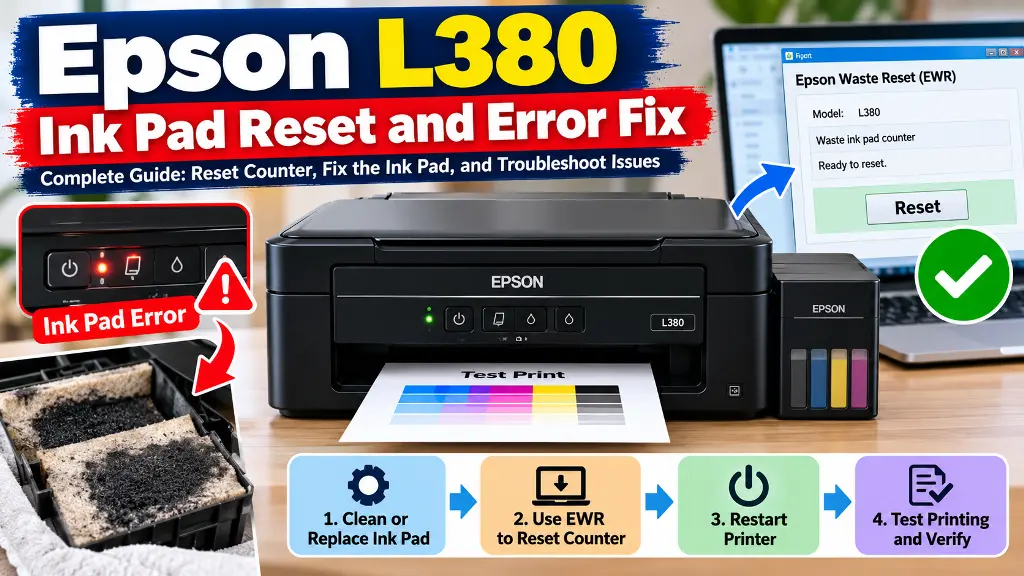
The Epson L380 is a popular EcoTank printer, but after extended use, it may stop printing and display a service-required or waste ink pad warning. In some cases, the printer may also show blinking indicator lights. If you are facing this problem, you may be able to restore printing by resetting the waste ink pad counter with a compatible maintenance utility.
In this guide, I will explain how I troubleshot my Epson L380 using EWR (Epson Waste Reset) version 1.5.1 on Windows, what happened when the reset was not fully confirmed, and how restarting the printer helped me restore normal operation.
What Is the Epson L380 Waste Ink Pad Error?
Epson printers use absorbent pads to collect waste ink produced during printhead cleaning and other maintenance operations. The printer tracks estimated waste ink usage with an internal counter. When that counter reaches its programmed limit, the printer may stop printing and require maintenance.
The important distinction is that the waste ink counter and the physical waste ink pad are not the same thing. Resetting the counter changes the printer’s stored accounting value. It does not remove, clean, dry, or replace the ink absorbed by the pad.
If the pad is saturated, damaged, leaking, or has reached the end of its service life, arrange proper cleaning or replacement before continuing to use the printer. Consult Epson support or a qualified technician if you are unsure how to service the pad safely.
What Is EWR Epson Waste Reset?
EWR, short for Epson Waste Reset, is an open-source utility designed to communicate with compatible Epson printers and reset their internal waste ink counters. It is different from a normal printer driver because it performs a maintenance operation rather than simply enabling printing.
The official project provides Windows builds and instructions on GitHub:
EWR official GitHub repository
Download the software from the repository’s official Releases page rather than an unfamiliar download website. The exact models and supported operations depend on the version and its printer database.
Things to Check Before Resetting the Epson L380
Before starting, take these precautions:
- Confirm that your printer is an Epson L380 and that the error is related to the waste ink pad or service counter.
- Inspect the physical waste ink pad and arrange replacement or proper maintenance if necessary.
- Use a direct USB connection to your Windows computer where possible.
- Cancel pending print jobs and close other Epson applications that may be communicating with the printer.
- Download EWR from its official repository and keep the executable together with the supplied database files.
- Do not run two reset utilities against the same printer at the same time.
Important: If you have washed the waste ink pad, do not reinstall it while it is damp. Allow it to dry completely in a suitable location, or preferably replace it with the correct part. Do not operate the printer if there is a risk of ink leakage or electrical contact with moisture.
How to Reset the Epson L380 Waste Ink Counter Using EWR
The following procedure describes the general EWR workflow. The exact prompts may differ between software versions, so follow the instructions displayed by your downloaded release.
Step 1: Download EWR
Open the official EWR Releases page and download the appropriate Windows release. Extract the downloaded archive into a folder on your computer. Keep the required database file with the executable.
Step 2: Connect the printer
Connect the Epson L380 to your computer using a USB cable. Make sure the printer is powered on and has finished starting up. Clear any waiting print jobs before proceeding.
Step 3: Start EWR
Run the EWR executable. Allow the utility to detect your printer and identify the matching model entry. Check that the detected model is Epson L380 before accepting the selection. Do not force a different model if detection fails.
Step 4: Review the waste ink counter information
EWR reads the printer’s status and available waste ink counter values before attempting to reset them. Review the information and proceed only if the model and operation are correct.
Step 5: Confirm the reset
If EWR asks you to confirm the waste ink pad counter reset, read the prompt carefully before confirming. The utility then attempts to write the reset values to the printer.
Step 6: Wait for verification
Do not disconnect the USB cable or switch off the printer while the operation is in progress. EWR reads the values back to verify whether the writes succeeded. Ideally, the utility should report that every required write has been verified.
Step 7: Restart the printer
After the operation has finished and the utility has released the printer, switch the printer off using its power button. Wait briefly, switch it back on, and allow it to complete startup. Then check whether the original warning has cleared and test printing.
My Real Experience: EWR Reported a Failed Write
When I tried resetting my Epson L380 with EWR 1.5.1, the printer was detected and the utility communicated with it. However, the final log did not report a completely successful reset.
The result showed that four out of five EEPROM writes were verified. The fifth write was not confirmed after three attempts because the expected acknowledgement was not received.
This was an important lesson: a printer can respond to the utility even when the reset process is not fully verified. A failed acknowledgement does not necessarily prove that no data was written, so the printer’s state may be uncertain.
Instead of immediately repeating the reset, I switched the printer off and then back on. After restarting it, my Epson L380 worked again.
This was the result on my particular printer. It does not guarantee that the same restart will fix every failed reset, and it does not prove that every counter value was reset successfully.
What to Do If EWR Says the Reset Failed
If EWR displays a message such as “EEPROM write not confirmed,” do not immediately run another reset. Some writes may already have been applied, and repeating the operation without understanding the result can make troubleshooting more difficult.
- Wait until EWR has finished and released the printer.
- Check that no print jobs remain in the Windows queue.
- Restart the printer using its physical power button, provided the printer is physically safe to operate and there is no moisture or ink leakage risk.
- Check whether the original warning has cleared.
- If the warning remains, save the EWR trace log and review the error before attempting another reset.
If the printer is still reporting an error, you can also close Epson Status Monitor, Epson Scan, and other printer utilities, then check the USB connection and driver. EWR’s official troubleshooting instructions explain these checks in more detail.
Read the official EWR troubleshooting guide
How to Check Whether the Printer Is Working Properly
After restarting the printer, do not rely only on the fact that it powers on. Check the following:
- The original service or waste ink pad warning has cleared.
- The printer is detected correctly by Windows.
- A test page or nozzle check completes without an error.
- There is no ink leaking from the printer and no unusual noise or smell.
- The physical waste ink pad has been properly maintained or replaced if necessary.
If the error returns, or the printer continues to show warning lights, stop and investigate the cause instead of repeatedly resetting the counter.
Resetting the Counter vs. Fixing the Physical Ink Pad
These are two separate maintenance tasks. A counter reset may allow a printer to resume operation, but it does not repair an ink-soaked pad. Continuing to print with a saturated pad can result in ink leakage and damage to the printer or the surrounding area.
For a long-term solution, make sure the waste ink collection system is in suitable condition. If the pad needs replacement or you cannot access it safely, contact Epson support or a qualified printer technician.
Frequently Asked Questions
Can restarting the Epson L380 clear a waste ink pad error?
Restarting can complete a reset operation that has already been applied or clear a temporary communication state. However, restarting alone does not reset a counter that has reached its limit in every case.
Is EWR free?
EWR is an open-source project. Download it from its official releases page and check the release information before use.
What does “4 of 5 writes verified” mean?
It means four of the five attempted writes were confirmed by the utility, while the remaining write was not verified. It should not be treated as a fully successful reset.
Should I run EWR again if one write fails?
Do not immediately repeat the operation. First allow the utility to finish, restart the printer if it is safe to do so, check the error, and examine the trace log if the problem remains.
Does resetting the waste ink counter clean the ink pad?
No. The counter is stored information inside the printer. The physical pad still needs proper maintenance or replacement when required.
Can I use this method on other Epson printers?
Support depends on the printer model and the utility’s database. Never assume that a reset procedure for the Epson L380 will work on another model.
Conclusion
My Epson L380 began working after I switched it off and back on following an EWR 1.5.1 reset attempt. Although the utility reported four verified writes out of five, the restart restored operation in my case.
If you are experiencing the same problem, identify the actual cause, inspect the physical waste ink pad, use a compatible reset utility, and pay attention to verification messages. Most importantly, do not confuse a cleared warning with a physically serviced ink pad. Proper maintenance is essential for reliable, long-term printer operation.
Disclaimer: This guide documents a personal troubleshooting experience and is provided for educational purposes. EWR is an independent open-source utility, not an official Epson product. Follow the printer’s service guidance and seek qualified assistance when necessary.